
How do I secure my PC?
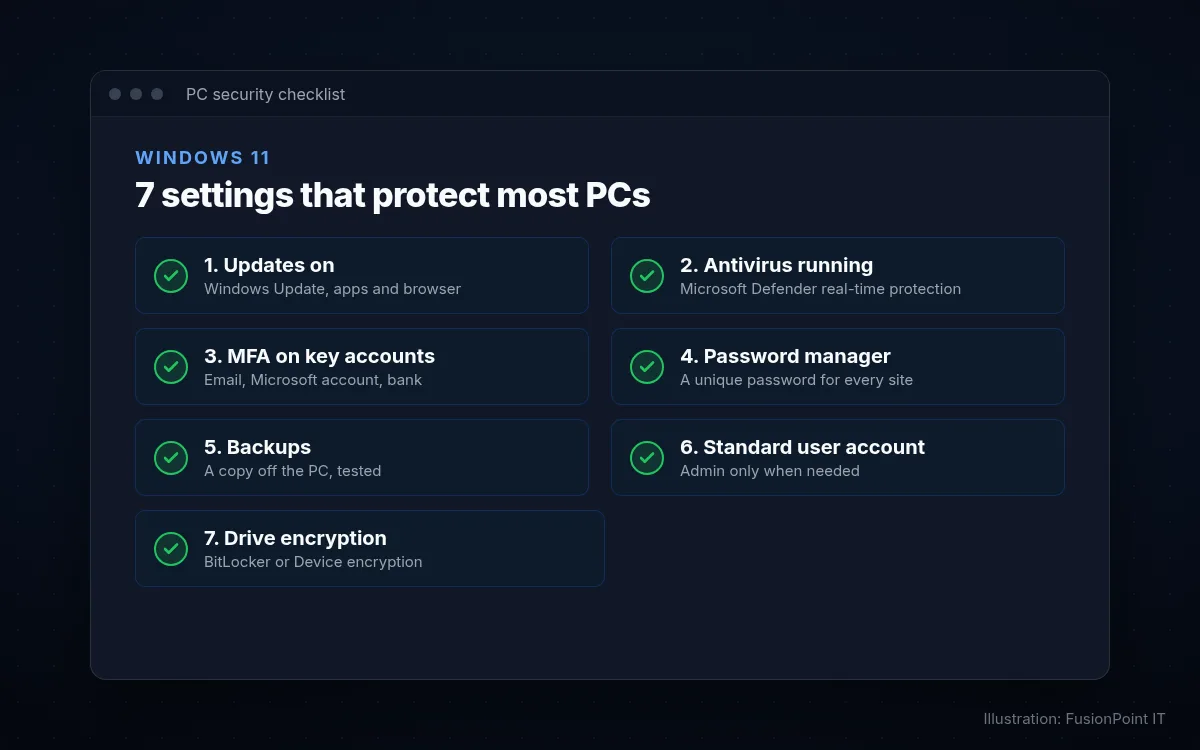
Keep Windows and your apps updated, leave Microsoft Defender turned on, protect important accounts with multi-factor authentication (MFA) and a password manager, back up your files, use a standard (non-admin) account for everyday work, and turn on drive encryption (BitLocker or Device encryption). Those seven basics close the doors that most everyday attacks rely on.
Step by step
Turn on automatic updates
Updates fix security holes that attackers already know about.
- Open Settings > Windows Update and select Check for updates. Install everything and restart.
- Under Advanced options, turn on Receive updates for other Microsoft products so Office gets patched too.
- Update your other apps: open the Microsoft Store > Library > Get updates, and let your web browser update itself.
- Still on Windows 10? Support ended October 14, 2025; without Microsoft’s paid Extended Security Updates it gets no security fixes. Plan a move to Windows 11.
Make sure Microsoft Defender is on
Windows 11 includes antivirus and a firewall at no extra cost.
- Open Start, type Windows Security and open it.
- Go to Virus & threat protection and confirm Real-time protection is on.
- Check Firewall & network protection shows the firewall on for every network.
- Under App & browser control, keep Reputation-based protection on to block known bad downloads and sites.
- Using a different antivirus? That’s fine. Just run one, not two.
Turn on MFA for your important accounts
MFA means a stolen password alone isn’t enough to get in.
- Start with email, your Microsoft account, banking and anything that can reset other passwords.
- For a personal Microsoft account, go to account.microsoft.com > Security and turn on two-step verification.
- Choose an authenticator app or a passkey over text messages where you can.
- Using Microsoft 365 for work? See how to turn on MFA in Microsoft 365.
Use a password manager
A unique, long password for every site stops one leak from opening everything.
- Pick a reputable password manager (many browsers include one) and protect it with a strong master password and MFA.
- Change reused passwords first, starting with email and banking.
- Sign in to Windows with Windows Hello (PIN, face or fingerprint): Settings > Accounts > Sign-in options.
- Where a site offers a passkey, use it. There’s no password to steal.
Back up your files
Backups turn ransomware or a dead drive into an inconvenience instead of a disaster.
- Keep at least one copy of your important files off the PC, and one that isn’t always connected.
- Test that you can restore a file.
- Step-by-step: how to back up your computer so you can restore it.
Use a standard user account for everyday work
If you get tricked into running something bad, a standard account limits what it can change.
- Go to Settings > Accounts > Other users (called Family & other users on some versions) and add an account for daily use.
- Select the account, choose Change account type, and set it to Standard User.
- Keep one separate administrator account with a strong password. Windows will ask for it when an install or setting really needs it.
- On a work PC, your IT provider should manage admin rights for you.
Turn on drive encryption
Encryption keeps your files unreadable if the laptop is lost or stolen.
- Windows 11 Pro: open Start, type Manage BitLocker, and turn BitLocker on for the C: drive.
- Windows 11 Home: go to Settings > Privacy & security > Device encryption and turn it on (only shown on supported hardware).
- Many newer PCs encrypt automatically. Either way, save your recovery key: for a personal Microsoft account it’s at account.microsoft.com/devices/recoverykey; on work PCs your IT provider should hold it. Without it you can be locked out of your own files.
Everyday habits that help
- Lock your screen when you step away: press Windows key + L.
- Be suspicious of unexpected attachments, links, “urgent” payment requests and pop-ups asking you to call a support number.
- Only install software from the Microsoft Store or the publisher’s own website.
- Restart at least once a week so updates actually finish installing.
Common questions
Is Microsoft Defender good enough on its own?
For most home PCs, Microsoft Defender turned on and kept updated gives solid built-in protection. Businesses usually add centrally managed protection and monitoring so someone actually sees and acts on alerts.
How do I check whether my PC already has malware?
Open Windows Security > Virus & threat protection > Scan options, choose Microsoft Defender Antivirus (offline scan) and select Scan now. The PC restarts and scans before Windows loads. If something is found or the PC still acts strangely, contact us.
Do I need a VPN?
Not for everyday browsing. Most websites already encrypt traffic. A VPN mainly matters when you connect to your company’s network from outside the office, and your IT provider should set that up.
Still stuck? Contact FusionPoint IT
Tell us what you’re seeing and a real person will help you sort it out. These guides are always free to read.
Send us a message
We’ll follow up by email. For anything urgent, call us.
Want someone keeping an eye on your PC?
FusionPoint RMM monitoring watches disk and hardware health, updates, antivirus and backup jobs, and emails alerts to the people you choose.
Monitoring and alerts. Any fix is quoted first and done only with your OK.
Sign up for monitoringRelated guides

How do I turn on MFA in Microsoft 365?
How do I back up my computer (and make sure I can restore it)?
Last reviewed November 15, 2026. Settings names can change with Windows and Microsoft 365 updates; if a step doesn’t match your screen, contact us. Related service: Security services.