
How do I back up my computer (and make sure I can restore it)?
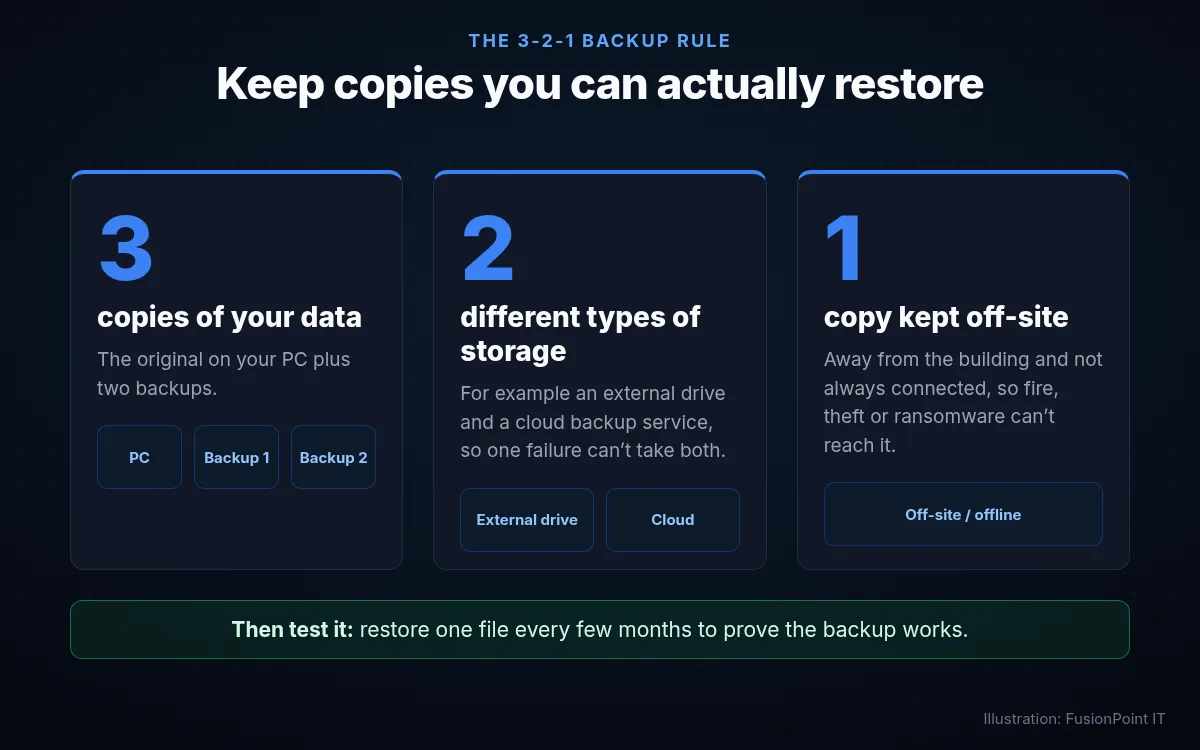
Follow the 3-2-1 rule: keep three copies of your important files, on two kinds of storage, with one copy off-site or offline. On Windows 11 that usually means Windows Backup to OneDrive (or another cloud backup) plus File History to an external drive you unplug afterwards. Then test a restore.
Step by step
Decide what needs backing up
- Usually: Desktop, Documents, Pictures and any folder where you save work, such as accounting or design files.
- Also think about anything stored only on this PC: old Outlook data files (.pst), browser bookmarks, and software license keys.
Turn on Windows Backup to OneDrive
- Open Start, type Windows Backup and open the app.
- Under Folders, choose the folders to back up to OneDrive, and turn on remembering your apps and settings if you want them.
- Free OneDrive storage is small (5 GB). Large libraries need a Microsoft 365 plan or another cloud backup service.
Add a second copy on an external drive
- Plug in an external drive. Open Control Panel > System and Security > File History and select Turn on.
- In Advanced settings, choose how often it saves copies and how long to keep them.
- File History keeps earlier versions, so you can go back to a file from before it was changed or encrypted.
Keep one copy off-site or offline
- Unplug the external drive once the backup finishes, or swap between two drives and keep one somewhere else.
- Ransomware can reach any drive that’s always connected, so one copy needs to be out of its reach.
Test a restore
- File History: open it and select Restore personal files, pick a file and restore it to a new location.
- OneDrive: right-click a file on onedrive.com and choose Version history. With Microsoft 365, Restore your OneDrive (in OneDrive settings on the web) can roll everything back to an earlier day in the last 30 days.
- Put a reminder in your calendar to test again every few months.
For a business, add these
- Back up Microsoft 365 too. Microsoft keeps the service running, but deleted mail and files only stay recoverable for a limited time. A dedicated Microsoft 365 backup covers mailboxes, OneDrive, SharePoint and Teams.
- Servers and shared drives need image-level backups that can bring the whole machine back, not just files.
- RAID or a mirrored drive is not a backup. It copies deletions and ransomware damage instantly.
- Write down the restore steps and who to call, so recovery doesn’t depend on one person.
Common questions
Is OneDrive a backup?
Partly. OneDrive syncs, so if a file is deleted or encrypted on your PC, the change syncs too. Its recycle bin, version history and (with Microsoft 365) Restore your OneDrive help you recover for a limited time, but a second, separate copy is still recommended.
How often should I back up?
As often as you’d hate to redo the work. For most people that’s at least daily for work files. OneDrive backs up continuously; set File History to run every hour or every day.
Can ransomware encrypt my backups?
Yes, if the backup is always connected or uses the same password as everything else. Keep one copy offline or in a backup service that keeps older versions that can’t be changed.
Still stuck? Contact FusionPoint IT
Tell us what you’re seeing and a real person will help you sort it out. These guides are always free to read.
Send us a message
We’ll follow up by email. For anything urgent, call us.
Could you get your files back after ransomware?
FusionPoint IT reviews your backups and recovery plan for free and tells you, in plain English, what would and would not come back.
Free, no obligation.
Request the free checkRelated guides


Last reviewed November 15, 2026. Settings names can change with Windows and Microsoft 365 updates; if a step doesn’t match your screen, contact us. Related service: Backups services.