
How do I turn on MFA in Microsoft 365?
For most small businesses, sign in to the Microsoft Entra admin center and go to Entra ID > Overview > Properties > Manage security defaults, set it to Enabled and save. Everyone is then asked to set up the Microsoft Authenticator app. If you have Microsoft 365 Business Premium (or Entra ID P1), use Conditional Access policies instead.
Before you start
- You need an admin role that can change security defaults, such as Conditional Access Administrator or Security Administrator (a Global Administrator also works).
- Security defaults block old “legacy” sign-ins (IMAP, POP, SMTP with a password, very old Office versions) and device-code sign-ins. List anything that still uses them, such as older copiers, scanners or line-of-business apps, so you can fix it first.
- Tell your team a day ahead: “Next time you sign in, Microsoft will ask you to set up the Authenticator app. It takes about five minutes.”
- Keep an emergency (“break-glass”) admin account documented in a safe place in case an admin gets locked out.
Step by step
Open the Microsoft Entra admin center
- Go to entra.microsoft.com and sign in with your admin account. (Microsoft already requires MFA for admins signing in to its admin portals.)
Find security defaults
- Select Entra ID > Overview, then the Properties tab.
- Scroll to Security defaults and select Manage security defaults.
- If it says Your organization is protected by security defaults, MFA is already on. Skip to step 4.
- If the option is greyed out, Conditional Access policies already exist. See If you have Business Premium below.
Turn security defaults on
- Set Security defaults to Enabled and select Save.
- From now on, everyone must set up MFA the next time they sign in. Microsoft no longer gives a 14-day grace period.
- People who are already signed in may not be asked right away. To make everyone register now, an admin can sign all users out (revoke sessions) after turning this on.
Have each person register Microsoft Authenticator
- At their next sign-in, staff see More information required. They install Microsoft Authenticator on their phone and scan the QR code.
- They can also start any time at mysignins.microsoft.com/security-info.
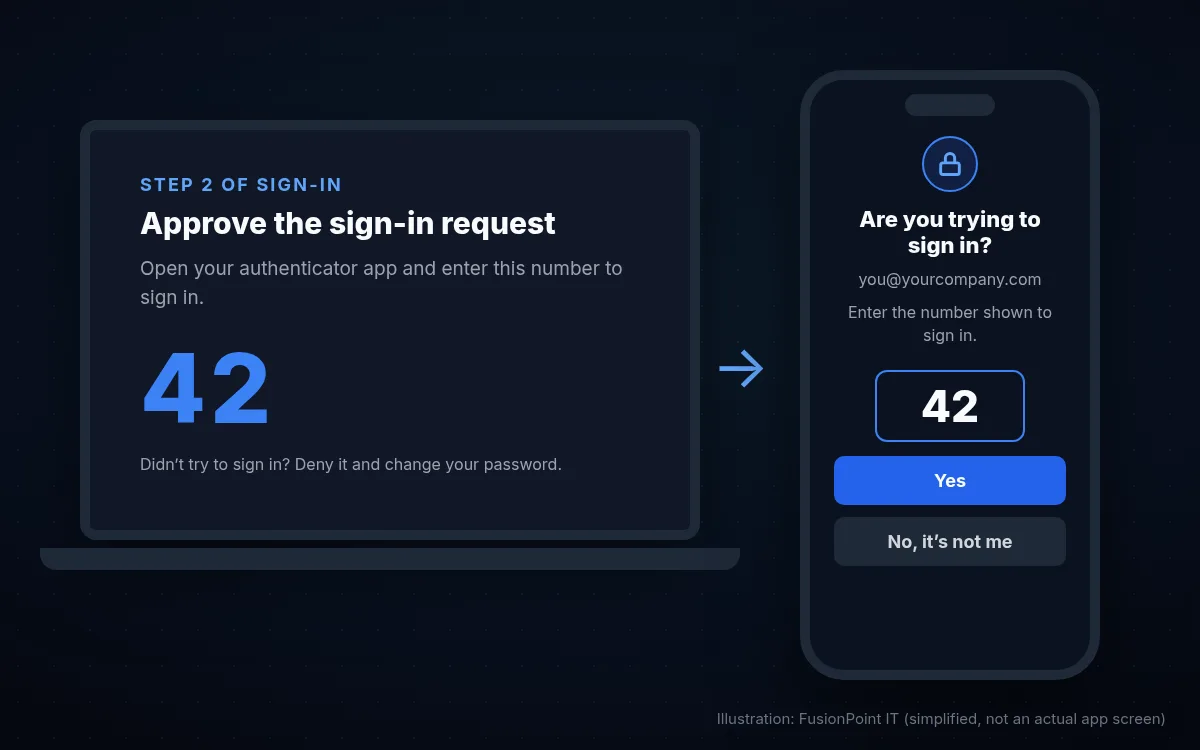
- When they sign in, the screen shows a number; they type it into the app. That number match stops people from approving prompts they didn’t start.
Add a backup method
- Ask everyone to add a second method on the same Security info page, so a lost or replaced phone doesn’t lock them out.
Check who has registered
- In the Entra admin center, search for User registration details (under Authentication methods) to see who still needs to finish setup.
If you have Microsoft 365 Business Premium
Business Premium includes Entra ID P1, which lets you use Conditional Access instead of security defaults. It gives finer control, for example requiring MFA everywhere but trusting compliant company devices.
- Go to Entra ID > Conditional Access and create policies from Microsoft’s templates, such as Require multifactor authentication for all users and Block legacy authentication.
- Start each policy in Report-only mode, check the sign-in logs, then switch it on.
- Exclude your emergency admin account, and turn security defaults off only once your policies are on.
- Don’t mix in the old “per-user MFA” setting; Microsoft recommends security defaults or Conditional Access instead.

Common questions
What happens if someone loses their phone?
An admin can open the user in the Entra admin center, go to Authentication methods, and choose Require re-register multifactor authentication. The person sets up the app again on their new phone at next sign-in. A backup method avoids this altogether.
Can people use text messages instead of the app?
Security defaults use the Microsoft Authenticator app (other authenticator apps can provide codes). Text-message codes can be allowed with Conditional Access, but they’re weaker than the app or a passkey, so use them only as a fallback.
Does MFA stop every attack?
No. It blocks most password-only break-ins, but some phishing sites can trick people into handing over a sign-in session. Phishing-resistant methods such as passkeys and well-tuned Conditional Access close more of that gap.
Will our copier or scanner stop emailing scans?
It might, if it signs in to Microsoft 365 with a plain username and password. Fix it before turning on security defaults, usually with a Microsoft 365 SMTP relay or the scanner’s scan-to-OneDrive or SharePoint option.
Still stuck? Contact FusionPoint IT
Tell us what you’re seeing and a real person will help you sort it out. These guides are always free to read.
Send us a message
We’ll follow up by email. For anything urgent, call us.
Not sure your Microsoft 365 is set up safely?
Ask for a free Microsoft 365 security check. We look at sign-in protection, admin access, email security and sharing settings, then tell you what to fix first.
Free, no obligation.
Request the free checkRelated guides


Last reviewed November 15, 2026. Settings names can change with Windows and Microsoft 365 updates; if a step doesn’t match your screen, contact us. Related service: Microsoft 365 services.